OneOS OneBuds Pro
Thanks for shopping with StudioOne! Please read the following to get the most out of your item.
Quick Start Guide
1. Open the Menu
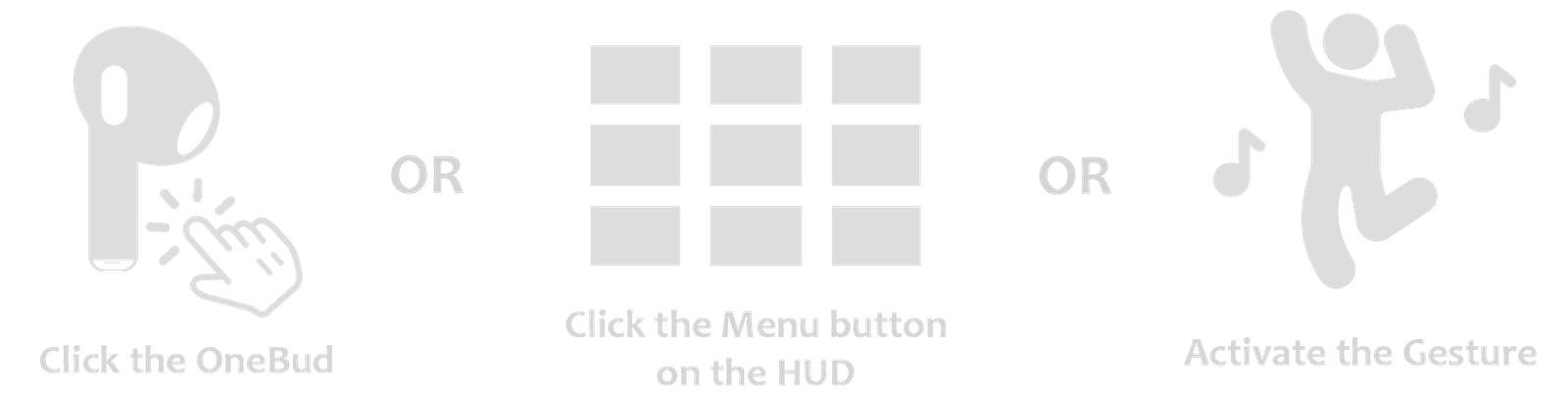
To activate the gesture: right-click > Activate, then type /onebuds in local chat.
2. Connect
To display your currently playing music, you must connect to Last.fm. Click 🛜 Connect in the main menu to get started.
Connecting to Last.fm
To get your live music showing above your head, you need to connect your OneBuds to Last.fm. It sounds highly technical, but we promise it's super easy!
STEP 1: Set Up Your Username
- Click 🛜 Connect in the main OneBuds menu.
- Click 1. Set User. A text box will appear with links.
- If you don't have an account, click the first link to create one, then verify your email.
- Click the third link in the text box to connect your Spotify account to your Last.fm account.
- Finally, type your Last.fm username into the text box in Second Life and hit Submit.
STEP 2: Generate Your API Key
This is what lets the OneBuds talk to your account.
- Click 2. Set API in the menu.
- Click the link provided to open the Last.fm API page.
- You ONLY need to fill out two fields:
• Contact Email: Your email address.
• Application Name: Anything you want (e.g. "OneBuds").
Leave all other fields completely blank! - Click Submit and copy the 32-character API Key.
- Paste that exact key into the text box in Second Life and hit Submit.
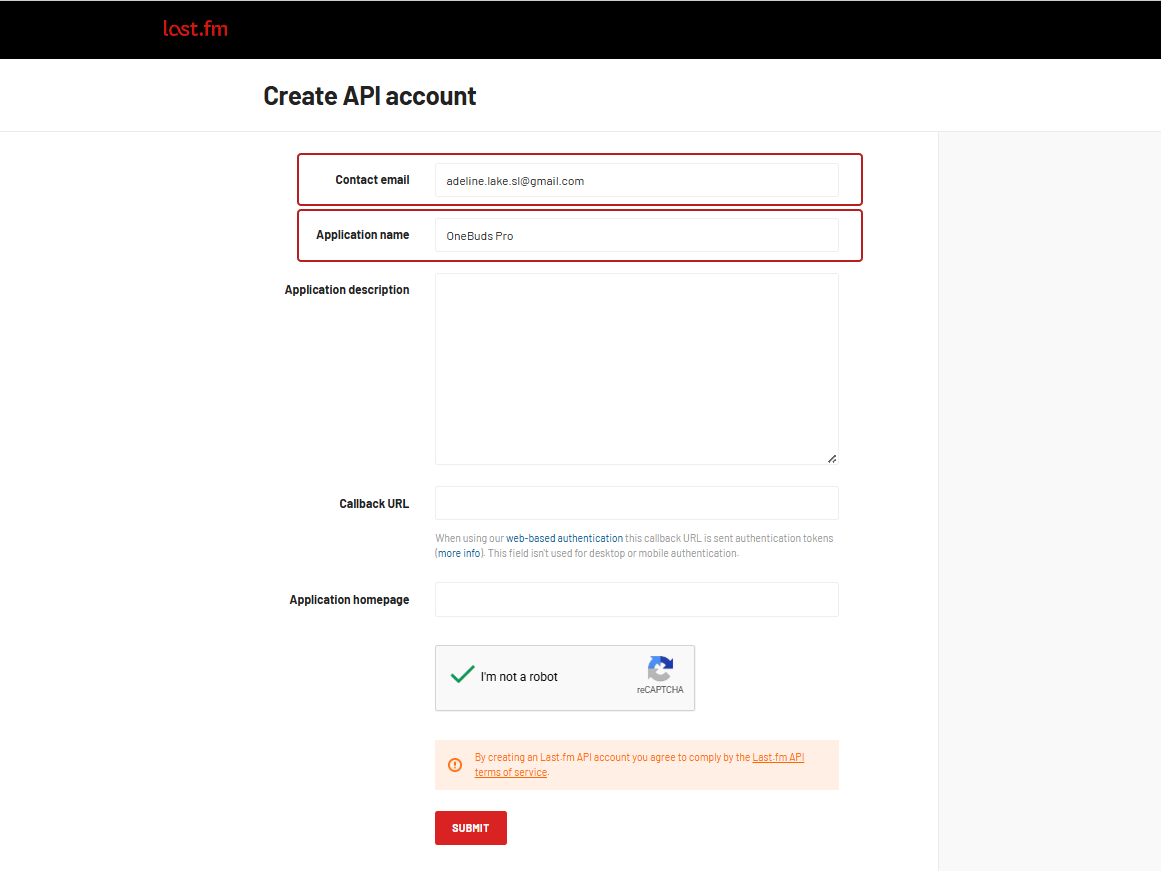
Leave the "Application description", "Callback URL", and "Homepage" completely blank!
STEP 3: Link Your Music Player
Now that your earbuds are talking to Last.fm, you need to tell your music player to send its data there!
Spotify
Last.fm has built-in support for Spotify across all devices.
- Go to the Track My Music page, or Settings > Applications.
- Find "Spotify Scrobbling" and click Connect.
YouTube, Pandora, etc.
Playing music through a web browser?
- Install the free Web Scrobbler extension for your browser.
- Click the extension icon in your browser toolbar to log in and link your Last.fm account.
Apple Music
Last.fm doesn't natively scrobble the Apple Music desktop app.
- Download the free Pano Scrobbler app (Win, MacOS, Linux).
- Open the app, sign in to Last.fm, and let it run in the background.
Give it a few seconds, play a song, and your music should now be tracking!
Note: If you lose your API Key, you can retrieve it here: last.fm/api/accounts
Main Menu Options
- ⏻ Power – Toggles the OneBuds completely on or off. When off, hover text is cleared and last.fm polling stops.
- 💭 Text – Instantly toggles the hover text visibility above your head.
- 💃 Dance – Opens the dance menu where you can choose different animations.
↳ Tip: Drag & drop your own animations into the earbuds' contents to add them! If your dances are No Transfer, you must Rez your OneBuds on the ground first. - 🔊 Share – Outputs your currently playing track and Last.fm profile link to local chat.
- 🛜 Connect – Opens the connection settings for your Last.fm account and API key.
- ⌨️ Settings – Opens the advanced settings and display toggles.
- ↔ Resize – Opens the resizing menu.
- ❓ Help – Gives you the troubleshooting notecards and a link to this guide.
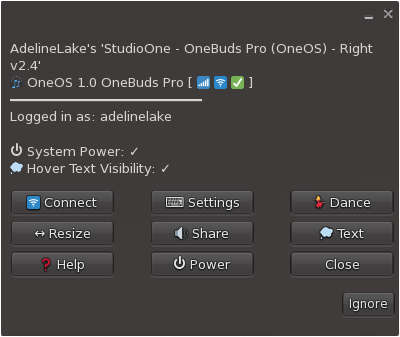
The OneOS Main Menu
System Settings & Sizing
Customize exactly what information shows in your hover text!
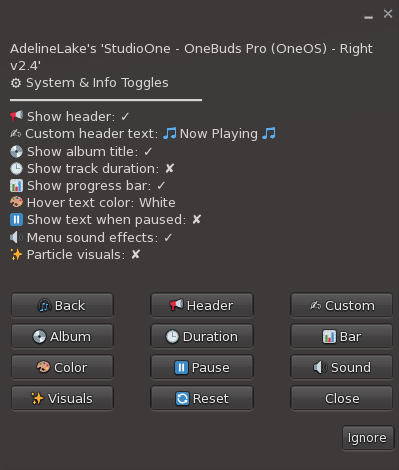
The System Settings Menu
Text & Layout
- 📢 Header: Toggles the custom top header line.
- ✍ Custom: Enter your own custom text for the header (e.g., 🎵 Now Playing 🎵).
- 🎨 Color: Choose from 10 pre-set colours, or choose CUSTOM to enter an LSL colour vector (e.g., <1.0, 0.5, 0.0>).
- ⏸ Pause: Toggles whether overhead text remains visible when your music is paused.
Visuals & Data
- 🔊 Sound: Toggles the menu clicking sound effects.
- ✨ Visuals: Toggles a subtle particle effect that floats out of the earbuds when music is playing.
- 💿 Album: Toggles the current album title display.
- 🕒 Duration: Toggles the total track duration time.
- 📊 Bar: Toggles the live music progress bar.
📏 Resizing Your Earbuds
Click Resize in the main menu to uniformly scale the entire headset up or down (-1% to +10%). Click "Restore" to instantly return to its original factory size.
Troubleshooting & Scrobbling
If your music isn't showing up over your head, don't panic! 99% of the time, it just comes down to your Spotify and Last.fm connection.
How to Turn On Scrobbling
Your item reads your music through Last.fm, which means Spotify needs permission to send (or "scrobble") your songs there.
- Log into your Last.fm account on your browser.
- Click your profile picture and choose Settings.
- Open the Applications tab.
- Find Spotify Scrobbling and click Connect.
- Log in to Spotify if asked and click Allow access ✅.
⚠️ Important Scrobbling Rules
If your accounts are linked but a song isn't showing:
- ⏱️ Patience: New tracks take a few seconds to appear.
- 🔁 Skipping: Pausing or skipping a song very quickly will not scrobble it.
- 🔒 Public Only: "Private Sessions" in Spotify do NOT scrobble.
- 🎧 Supported Media: Podcasts and local files won’t show up.
🚨 Stuck on Old Songs, "Paused", or Lagging Behind?
THE TEST: Open your web browser and check your actual Last.fm profile page. If the website is ALSO showing the old song, it means Spotify's background connection is lagging. Your OneBuds are working perfectly; they are just waiting on Spotify!
Try these quick fixes to force the pipeline to catch up:
- The Pause Trick: Pause your music on Spotify for 3 full seconds, then hit play again. This forces Spotify to push an immediate update.
- Reconnect Scrobbling: Go to Last.fm > Settings > Applications. Click Disconnect next to Spotify Scrobbling, then immediately click Connect. This flushes the connection and fixes it 99% of the time!
- Re-Authenticate Spotify: If you log into Spotify via Google, go to your Google account settings > Security, and make sure your Spotify login is freshly authenticated.
- Reboot the Item: In Second Life, open the OneBuds menu, turn the Power OFF, wait a few seconds, and turn it back ON to force a fresh scan.
Missing Track Durations / YouTube Scrobbling
Notice that your progress bar is animating but no time numbers are showing, or it seems to default to exactly 3 minutes?
Track durations are highly reliable when scrobbling directly from the Spotify app. However, if you are using browser extensions (like Web Scrobbler) to track music from YouTube, SoundCloud, or other web players, those platforms often fail to send the track length data to Last.fm.
This is completely normal! If your OneBuds don't receive a real track length, they will automatically hide the numbers and animate the progress bar on an estimated 3-minute loop so your display stays active and looking cool.