SmartClean Robot Vacuum
Thanks for shopping with StudioOne! Your SmartClean is an autonomous little housemate - it roams your home on its own, cleans within a radius you set, dodges your furniture, finds its way back to its dock to recharge, and (if you let it) chats back. Please read the following to get the most out of it.
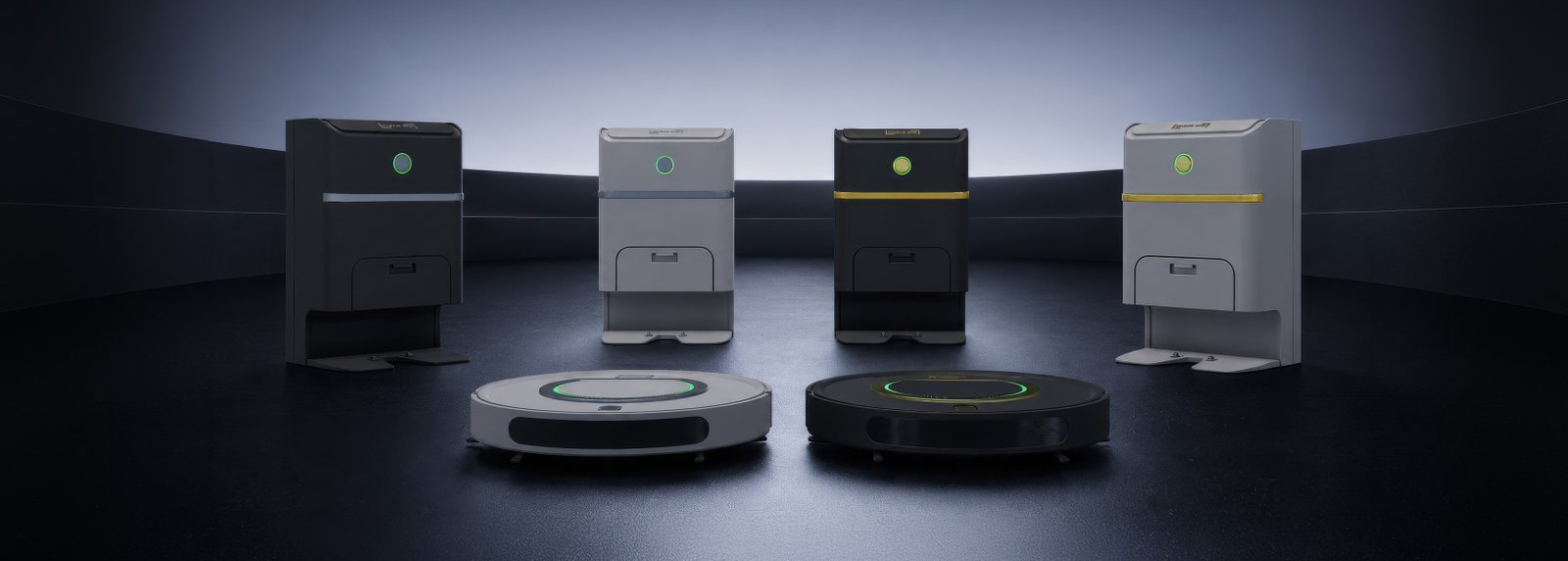
What It Does
Cleans On Its Own
Smart pathfinding drives it around your space within a radius you choose, with edge & cliff detection so it won't tumble off the deck.
Docks & Recharges
When a cleaning cycle ends or the battery runs low, it returns to its matching dock on its own to park and recharge.
Talks Back
Drive it with simple chat commands, and switch on its optional voice for a vacuum with a bit of personality.
Runs On Schedule
Set it to clean daily, on weekdays, or on a specific day each week - then forget about it.
First-Time Setup
Setup runs as a quick wizard the first time you rez your vacuum - no notecards to edit. It takes about a minute.
Your vacuum's name can be any letters and numbers, and it becomes the word you'll use for every command (we named ours Steve). When you place it, set the dock flush against a wall with the socket flush against the wall, and leave the floor around it clear so your vacuum has plenty of space to drive in to park. With both positioned, tap Set Home to lock in that spot and rotation - this is required before setup continues. The wizard then offers Pair Dock: tap it and touch the docking station you want, and its light will mirror the vacuum's. Once you're done, fine-tune radius, pathfinding & sound in the menu, then say [name] on to start cleaning.
Good to know: your vacuum finds its way by feeling for solid collision, not by sight, so it's only as smart as the mesh it bumps into. Phantom mesh, a Physics Shape of "None", or a loose "Convex Hull" can all let it roll straight through what looks like a solid wall. Wherever you want a hard boundary, rez a plain invisible prim against the wall or object - ordinary prims have accurate physics and will reliably turn it back.
Chat Commands
Everything is driven from local chat. The one rule: start every command with your vacuum's name, then the command - for example, Steve on or Steve go home. (No comma after the name.)
By default only you can command your vacuum. To let your group - or everyone - talk to it too, change the Access setting in the menu.
Everyday
[name] on- start cleaning
(or[name] suck)[name] off- stop cleaning
(or[name] stop sucking)[name] go home- return to the dock[name] set home- set the current dock spot as home[name] status- what it's doing right now[name] battery- current charge level[name] where are you- find it[name] help- quick help & this guide
Just For Fun
Switch the voice on (see Settings) to hear these out loud.
[name] how dirty is my house[name] tell me a joke[name] how are you[name] are you tired[name] what's the meaning of life[name] what's up[name] good boy(or girl / job / vacuum)who's a good vacuum
To hear it, make sure your viewer's sound is on - and stand within local chat range, or it won't hear you.
Menu & Settings
Prefer buttons? Tap the vacuum to open its menu. The panel up top is a live readout - battery, what it's doing right now, and a summary of your current settings - and the buttons handle the rest. (Only you can open it by default; see Access.)
Main Menu
- Clean - start (or stop) a cleaning cycle.
- Go Home - send it straight back to its dock.
- Settings - radius, sound, schedule and everything else (below).
- Help - drops the help notecard and a link to this guide.
- Close - close the menu.
The readout above the buttons shows battery, current status, and your settings at a glance: sound, pathfinding, radius, cycle, timeout and access.
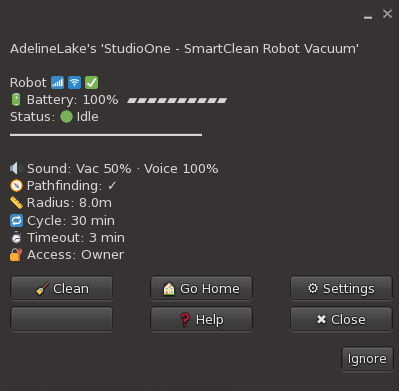
The main menu
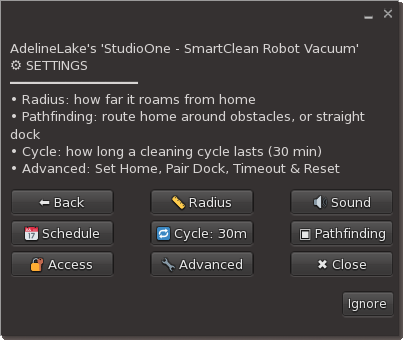
The Settings menu
Settings
- Radius - how far it roams from home. Keep it inside your walls.
- Sound - vacuum and voice volumes (e.g. Vac 50%, Voice 100%).
- Schedule - automatic cleaning times: Daily, Weekdays, or Weekly.
- Cycle - how long a cleaning cycle lasts (default 30 min).
- Pathfinding - route home around obstacles, or take the straight-line dock.
- Access - who may use it: Owner (default), Group, or Everyone.
- Advanced - the deeper controls (below).
Advanced
- Set Home - re-save the dock's position and rotation.
- Pair Dock - link a docking station to this vacuum.
- Timeout - how long it tries to pathfind its way home before giving up and docking straight, ignoring obstacles (default 3 min).
- Reset - restore factory defaults.
The Docking Station
The dock is where your vacuum parks and recharges between cycles. Once you've paired them (Settings > Advanced > Pair Dock), the dock's light mirrors the vacuum's status, so a glance across the room tells you how things are going. Give it a little clear floor in front so the vacuum can drive in cleanly.
Tap the dock to open its own menu - a handy remote for your paired vacuum. This menu is always owner-only, even if you've opened the vacuum's Access to Group or Everyone, so only you can control it from the dock.
Dock Menu
- Go Home - send the vacuum back to the dock, routing around obstacles (if pathfinding is enabled in the vacuum's settings).
- Quick Home - bring it back right away in a straight line, ignoring obstacles.
- Clean / Stop - start or stop the vacuum.
- Locate - get a teleport link to wherever the vacuum is.
- Hide Plug - show or hide the dock's charging plug.
- Close - close the menu.
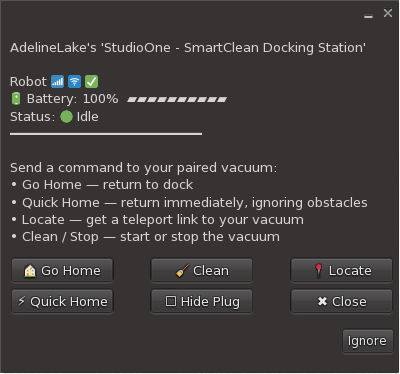
The dock menu
LED Status Guide
The light on your vacuum (and its paired dock) tells you what's going on:
Idle - docked and ready.
Cleaning, battery healthy.
Cleaning, battery getting low or charging low battery.
Critically low battery - heading home to charge, or charging.
Setup mode (first-run wizard), or saying something fun.
A fresh dock glows rainbow until it's paired with a vacuum, then it matches the vacuum's LED colour.
Troubleshooting
It won't respond to chat
- Use its name first. Commands must start with your vacuum's name, e.g.
Steve on- not juston. - Get closer. It only hears you within local chat range (20m).
- Check access. Commands default to owner-only - if someone else needs to use it, set Access to Group or Everyone in the menu.
It won't move / won't start
- Set a home first. Run setup or say
[name] set homeso it knows where its dock is. - Check the battery. Say
[name] battery; if it's low, let it charge on the dock. - Land rights. Make sure scripts and object entry are allowed where it's rezzed.
It cleans too wide / leaves the room
Lower the Clean Radius in Settings so it stays inside your walls. The radius is measured from its home/dock spot.
It won't dock properly
Give the dock a clear floor in front of it, and re-run [name] set home with the dock where you want it. Then try [name] go home.
🔄 When in doubt, reboot
Most hiccups clear with a fresh start: tap Stop to stop it, wait a few seconds, then tap Clean again - or send [name] go home to bring it back to a known state. For a clean slate, Settings > Advanced > Reset restores factory defaults (you'll need to set it up again).