StudioOne TV Pro
A new standard for in-world entertainment. Watch YouTube in sync with friends in SyncStudio, host watch parties, control your parcel stream, play games, and more in a fully immersive experience.
Follow these steps to get your StudioOne TV Pro up and running in minutes.
1. Power & Registration
Click the TV and select 'Power'. Once the media face loads, a registration prompt will appear. If the link expires, select 'Re-Register' from the TV menu.
2. Remote HUD Sync
Attach the HUD and click the Sync icon (left of Home). Click Pair and select your TV's 6-digit token found directly under the screen logo.
3. Audio Pairing
On the TV, go to 'My Parcel Music' and click Pair. Touch your Soundbar, select Pair, and enter the code shown on the TV.
Group Land? You must Deed the soundbar.
4. Sharing with Friends
You can allow others to use the TV in three ways:
- Touch Menu: Settings > TV In-World Menu (Group/Public).
- Navigation Only: Enable the 'Nav Bar' for guest browsing.
- SyncStudio: Choose what guests can do with the lock button (Guest access).
Important Notes for Getting Started
- Media Auto-Play: Enable "Media Auto-Play" in your viewer preferences to avoid having to click the screen manually.
- Security Defaults: Both the Settings Menu PIN and Screen Lock PIN are set to
0000by default. We recommend updating these in the Settings menu. SyncStudio's owner controls only work once the Settings Menu PIN is something other than0000. - Hardware Style: Toggle the physical Legs and LED via the Settings menu to fit your space.
In the Box:
- StudioOne TV Pro
- Soundbar (Scripted)
- Soundbar (Decor)
- Remote HUD
- Wall Mount
- Remote Accessory (Worn)
- Remote Decor
Parcel Deeding & Audio
Utilize your supplied StudioOne Soundbar to control your parcel’s audio stream directly from the My Parcel Stream menu on the TV. The Soundbar must have permission to change your land's music URL to function.
The Group-Ownership Rule
If your land is Group-Owned, you MUST Deed your Soundbar before it can be used. The Soundbar will display a caution message if it detects this requirement.
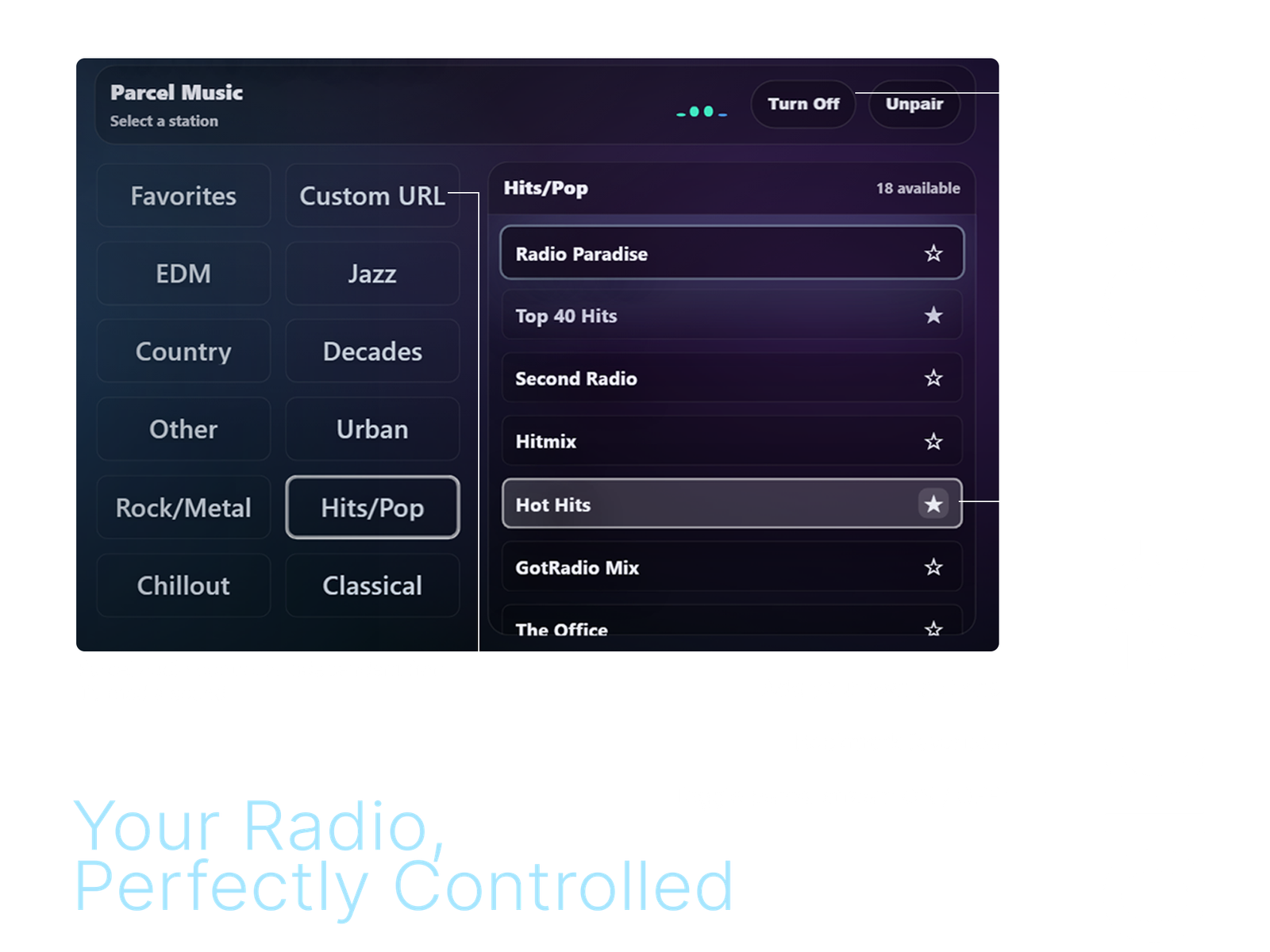
Parcel Music interface and button controls.
Pairing the Soundbar
To control music, you must pair the TV with your Soundbar:
- Navigate to 'My Parcel Music' on the TV and click 'Pair'.
- Touch the Soundbar to open its menu and select 'Pair'.
- Enter the code shown on the TV into the Soundbar's menu.
Playing Music & Favorites
- Tuning In: Browse by genre and select a station to play.
- Stream Toggle: Use the ON/OFF button on the music page to control the parcel stream.
- Saving Favorites: Highlight a station and click the Star (★) icon.
- Remote Shortcut: Use the Favorite button on the remote HUD when a station is highlighted.
Step-by-Step Deeding Instructions
- Set to Group: Right-click the Soundbar > Edit. In the General tab, ensure the 'Group' matches your land group.
- Share & Deed: Check the 'Share' box, then click the 'Deed' button.
- Confirm: A system warning regarding losing ownership will appear—confirm this to allow the land to "own" the object for stream control.
SyncStudio Beta
SyncStudio is the TV's app for watching together. Watch YouTube, plus most Twitch, Vimeo and SoundCloud links. Everyone at the TV sees the same thing, no matter when they join the party.
Search YouTube or paste a link, and play it for everyone. Guests can add to the queue or send requests, and the owner decides how much guests can do. The owner can also save playlists and follow favorite YouTube channels right on the TV.
How it stays in sync: every few seconds, each viewer's screen checks in with our server, and any screen that drifts is corrected. Play, pause, skip and the TV's volume change for everyone at once. Panels, searches and subtitles are just for your own screen.
SyncStudio is brand new and still in beta, so you may spot the odd bug. Report bugs with Help (?) > Support, and send ideas with Help (?) > Feedback.
Hover over (or tap) any button to see what it does. Buttons marked Owner need the owner PIN (your TV's Settings Menu PIN).
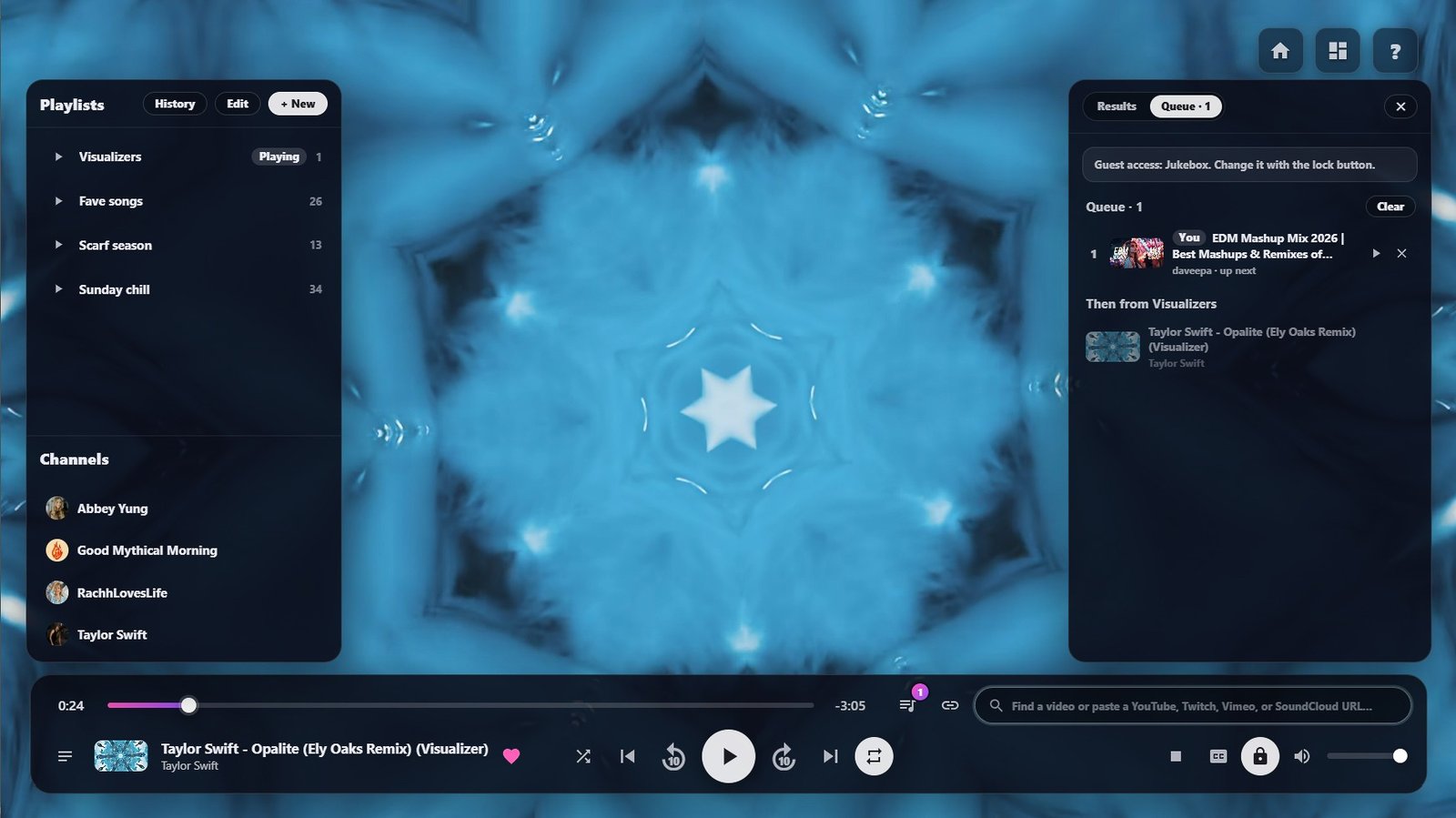
Tap a name in the list below, or a button on the screen, to see what it does.
SyncStudio as the owner sees it, with the Playlists and Queue panels open. Opening a panel only changes your own screen.
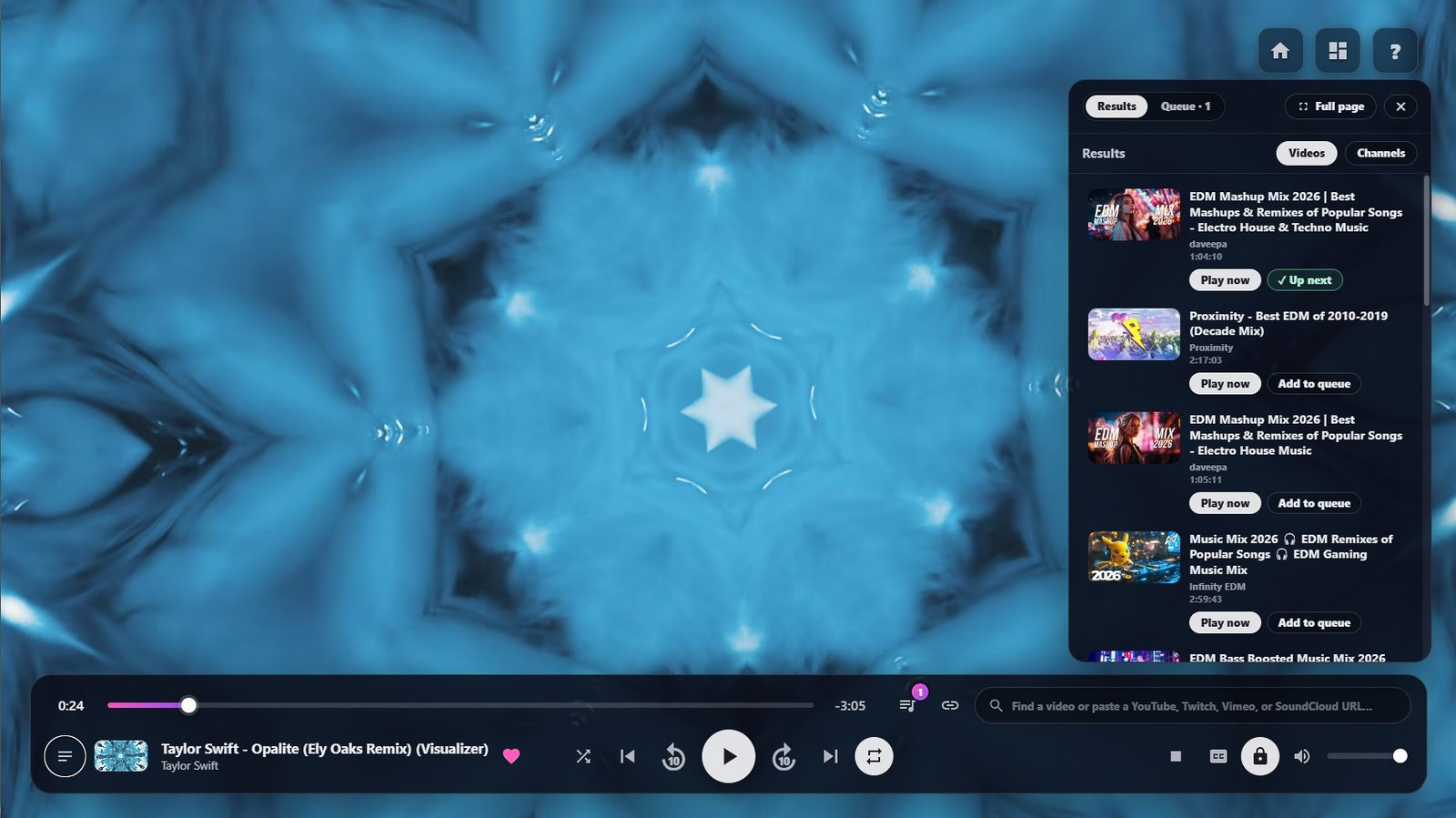
Tap a name in the list below, or a button on the screen, to see what it does.
What a search finds, in the right-hand panel.
Top corner and bottom bar (16 buttons, same as the main screen)
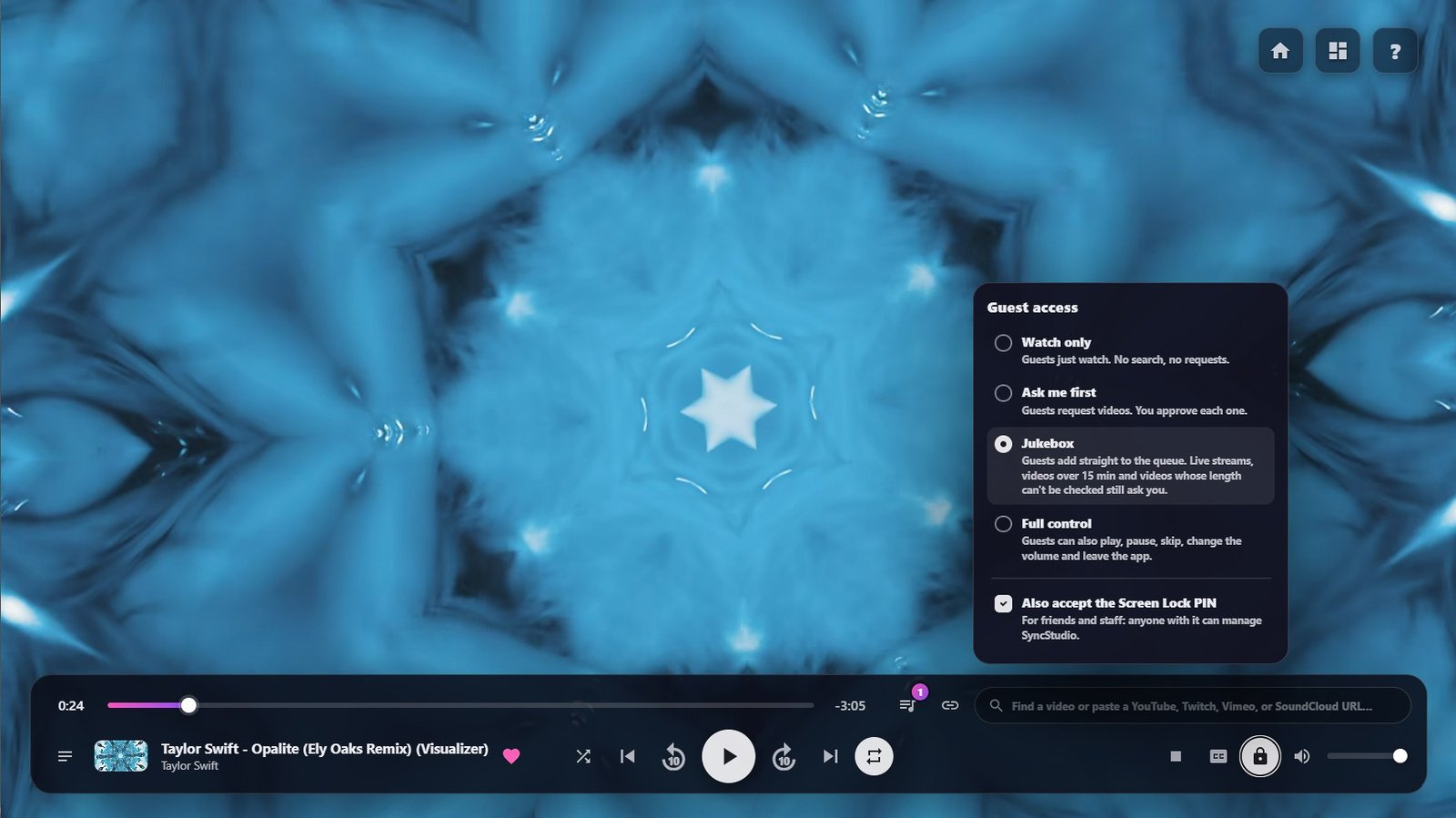
Tap a name in the list below, or a button on the screen, to see what it does.
The owner's lock button opens Guest access.
Top corner and bottom bar (15 buttons, same as the main screen)
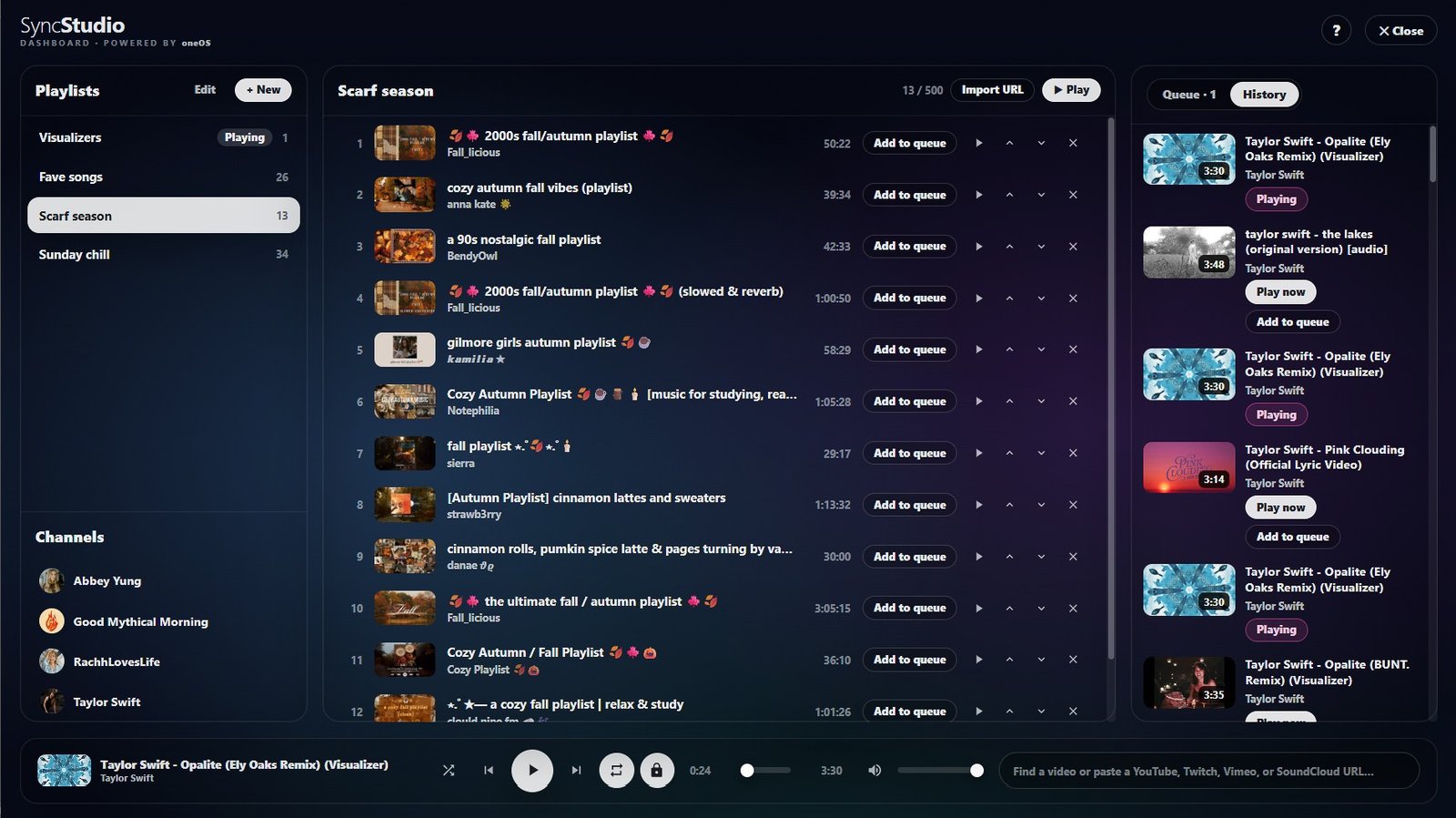
Tap a name in the list below, or a button on the screen, to see what it does.
The owner's Dashboard, opened over the video with the grid button.
Opening SyncStudio
- On the TV's Home screen, select the SyncStudio tile (the first tile, top left). The TV switches to SyncStudio for everyone watching.
- Or click the SyncStudio (Beta) slide in the promos at the bottom left, then Open SyncStudio.
- If your screen shows Tap to join the stream, click it once to join everyone at the same point in the video.
Leaving SyncStudio
Use the Home button at the top right of SyncStudio, or Home in the TV's touch menu. Home takes the TV back to its Home screen for everyone.
The owner always has the Home button. Guests only get it at Full control.
Owner Controls
The owner is whoever enters the TV's Settings Menu PIN in SyncStudio. Click the lock button, the Dashboard button, or Enter PIN in the Playlists panel. On a Watch only TV, use the Owner PIN bar at the bottom of the screen. If typing doesn't work, use the number pad.
Enter It Once
You only need to enter it once. Your viewer keeps a scrambled owner key for this TV, never the PIN itself. You'll be asked again if the Settings Menu PIN changes, you use a different viewer or computer, or your viewer's saved web data is cleared.
Owner Only
Only the owner can make or change playlists, follow channels, approve requests, clear the queue, open the Dashboard and change Guest access.
Why a PIN? SyncStudio never uses your IP address or avatar name to identify you, so a PIN is the only way to get owner controls.
⚠️ Set a Settings Menu PIN first
SyncStudio has no owner until your TV has a Settings Menu PIN other than 0000. Until then, everyone watching gets Full control, but nobody can make playlists or change Guest access. Set a Settings Menu PIN in the TV's Settings, then click the lock button in SyncStudio and enter it.
Guest Access
The owner chooses what guests can do with the lock button. Once the TV has a Settings Menu PIN, new TVs start at Ask me first.
Watch only
Guests just watch. They can't search, paste links or send requests. On the TV, an Owner PIN bar replaces their controls. Guests don't need a PIN to watch.
Ask me first
Guests can search and request videos. The owner approves each one.
Jukebox
Guests add videos straight to the queue. Live streams, videos over 15 minutes and videos whose length can't be checked (such as SoundCloud tracks and Twitch videos) still go to the owner first.
Full control
Guests can also play, pause, skip, change the volume, manage the queue and leave the app.
Whatever level you choose, the owner keeps playlists, followed channels, approvals and Guest access. Each guest can have up to 3 videos at a time in the queue or waiting for approval. Below Full control, guests see the playback buttons dimmed.
Queue & Requests
- What plays next: a video started with Play now, then the queue, then the playlist that's playing. When the queue is empty, the playlist carries on.
- Adding: use Add to queue on a search or in History (or on a playlist video in the Dashboard), or paste a link. Guests on Ask me first see Request instead.
- Requests: the owner sees Needs your approval at the top of the queue, with Approve, Play now and Deny. The queue button shows a dot while requests are waiting. A guest's request shows "Waiting for approval", and they can remove it while it waits.
- Live streams and repeat: a live stream, or a video on repeat, doesn't end by itself, so the queue waits behind it until someone presses Next.
- Private by design: nobody can see who added a video, not even the owner. Your own picks are marked You only on your screen.
Playlists
Only the owner can make and change playlists: up to 50 per TV, each holding up to 500 videos. Fill them with the ♥ button (saves the video that's playing), the Save option when you paste a link, or Import URL in the Dashboard to copy a YouTube playlist. The playlist marked Playing carries on whenever the queue is empty. Shuffle plays it in a random order, and Loop repeats the whole playlist or one video.
History & Channels
History lists the last 50 videos the TV played. Anyone can open it (except guests on Watch only), and it shows what played, not who asked for it. The owner can follow up to 30 YouTube channels: search, switch to Channels and press Subscribe. Followed channels are listed under Channels for everyone to browse (except guests on Watch only).
Keeping things tidy: SyncStudio re-checks saved videos with YouTube about once a month. A video YouTube has removed stays in its place marked "Video unavailable", is skipped, and can be removed by the owner. The queue, requests and History are kept for 30 days at most.
The Dashboard
The Dashboard is the owner's bigger view: playlists and channels on the left, the open playlist in the middle, the queue and History on the right, with playback and search along the bottom. Open it with the grid button at the top right of SyncStudio. It opens over the video on your screen only, so nobody else's view changes. Close takes you back.
In the middle column you can reorder or remove videos, use Import URL (YouTube playlists only), and play the playlist from the start or from any video.
The Dashboard asks for the owner PIN first, unless the TV has no Settings Menu PIN yet. On a Watch only TV, guests don't see the button.
Tips
- Videos that won't play: a video may have been removed or made private, its uploader may have turned off embedding, or it may be age-restricted (YouTube only plays those on YouTube itself). SyncStudio says "Video unavailable" and skips it. After 3 in a row it stops and asks for another pick. If a video fails only on your screen, it isn't skipped for everyone. You'll see "it plays for others".
- Live streams: they show LIVE, you can't jump forward or back in them, and they play until someone presses Next. Twitch channels play live. If a channel is offline, SyncStudio says so and moves on.
- Subtitles: CC turns on YouTube subtitles for your screen only.
- No sound? Click Tap for sound. For Twitch, click inside the Twitch player to start it. Also check that media is on and turned up in your viewer's sound settings.
- Remote HUD: inside SyncStudio, the remote's arrows and SELECT don't work. Use the buttons on the SyncStudio screen instead.
- Typing not working? Try relogging. This is a known bug with SL media. The Owner PIN boxes also have a number pad.
Watch Parties (Kosmi)
Kosmi is a free service for watch parties. Share your screen or stream a media URL from your browser, and everyone on your parcel sees it with near-zero delay. For YouTube, Twitch, Vimeo and SoundCloud, SyncStudio is the simpler choice: no browser needed.
When to use Kosmi
Use Kosmi for anything SyncStudio can't play, like screen sharing or other streaming sites. Websites opened on the TV any other way (the Browser, other app tiles or My Custom Services) load separately for each viewer and can drift out of sync.
Managing Lobbies
Save your personal lobby and your friends' lobbies directly within the StudioOne Kosmi interface for instant, one-click access.
Going Fullscreen
Use the Fullscreen button on your Remote HUD or the TV 'Touch' menu to automatically scale the Kosmi stream to fit your screen perfectly.
How to Use Kosmi
- Open Lobby: Launch your Kosmi lobby in your standard internet browser.
- Select Media: Choose your streaming method (URL or Screen Share) within the browser.
- Connect: Selecting your lobby from the TV's internal list will instantly bridge the stream to your StudioOne unit.
My Custom Services
Beyond the built-in applications, you can save your own favorite websites or streaming services for quick access.
Adding Services
Navigate to My Custom Services and select the 'Add' button to input a new URL. Once saved, simply select the new entry to load it onto the TV screen.
Sharing Links
Click the Link Icon button to have the current URL shared directly into local chat for others to access.
Kosmi Integration
Click the Kosmi button within the Custom Services menu to share both the URL and your Kosmi lobby link in local chat simultaneously.
- Auto-Load: This action automatically loads your Kosmi lobby on the TV.
- First-Time Setup: If you haven't set your Kosmi lobby yet, the system will prompt you to do so before sharing.
Remote HUD Guide
The StudioOne Remote HUD allows you to navigate and control any TV you own with a familiar, physical interface.
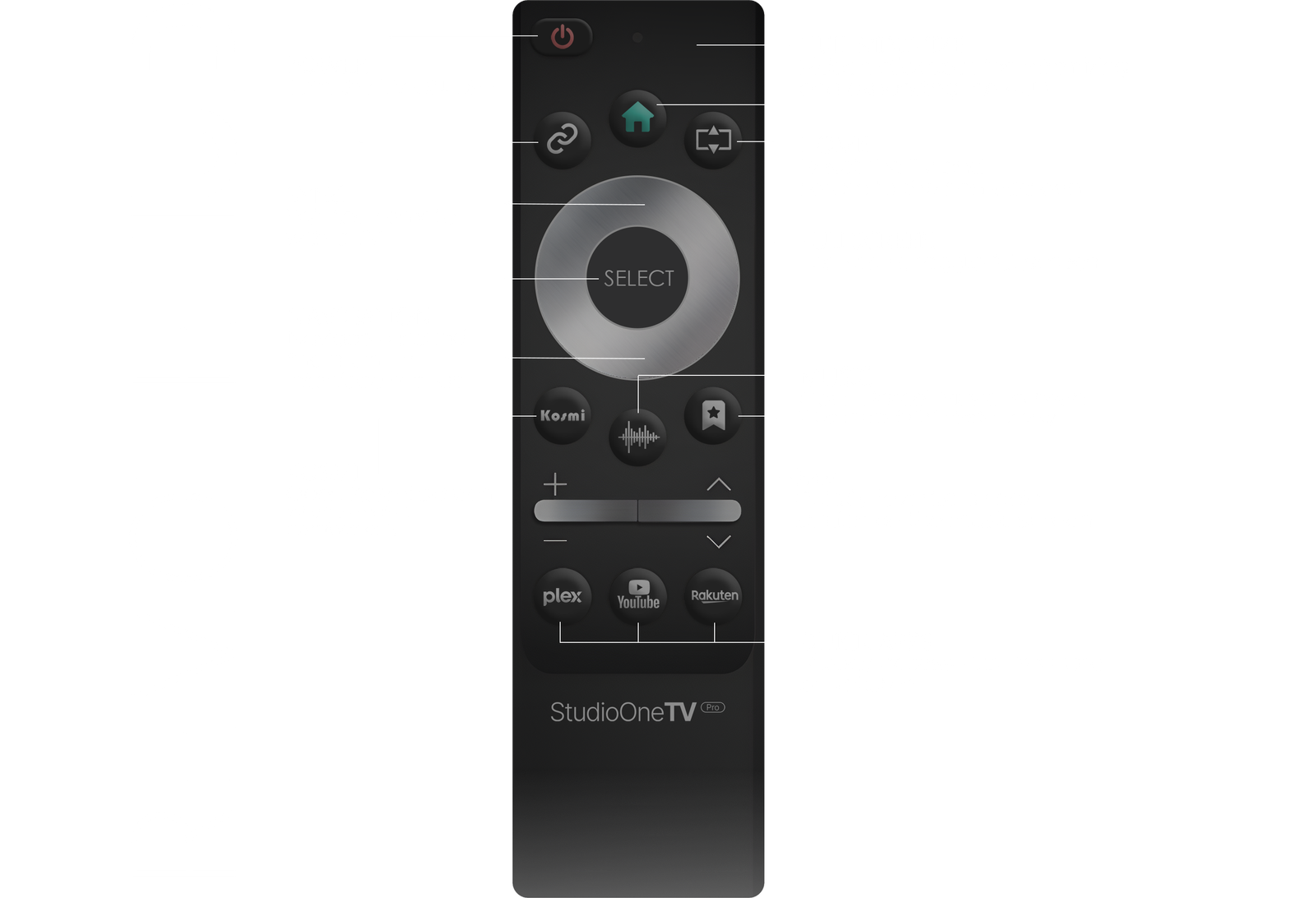
Standard button layout and navigation controls.
Pairing Your Remote
- Click the Sync Icon (located to the left of the Home button).
- Choose 'Pair' from the menu.
- Select your TV Code. This code is always visible on the TV screen directly under the StudioOne logo.
The Home Button
Pressing the Home button returns you to the main StudioOne app interface. The remote works on the TV's own pages; inside SyncStudio or on an outside website, use Home in the TV's touch menu instead.
⚠️ SL Media Limitations
Due to the way media is handled within Second Life, you may experience slight delays in response. Additionally, please note that some buttons may not function when navigating external websites or certain third-party apps. Inside SyncStudio, the remote's arrows and SELECT don't work. Use the buttons on the SyncStudio screen instead.
Settings & Customization
Tailor your StudioOne TV Pro experience by managing access permissions, hardware styles, and accessing the main control menu.
🔐 Security & Access
- Menu Access: Control who can touch the TV's In-World menu—choose between Owner, Group, or Anyone.
- Screen Lock: Protect your main menu items (like parcel streams) with a PIN. Default is 0000.
- Settings Menu PIN: Change your configuration PIN (Default: 0000) to prevent others from modifying your setup. It's also your owner PIN in SyncStudio.
- SyncStudio: To let someone manage SyncStudio without your Settings Menu PIN, click the lock button in SyncStudio and switch on Also accept the Screen Lock PIN. See Sharing Owner Access.
Note: Screen Lock only protects the menu interface, not active website viewing.
🎨 Hardware Style
- TV Legs: Toggle the physical floor-standing legs ON or OFF.
- LED Lights: Toggle the ambient glow strip and select your preferred backlight color.
📺 In-World Menu Controls
Clicking the physical TV frame brings up the main dialog menu in Second Life. Here is a breakdown of the available commands:
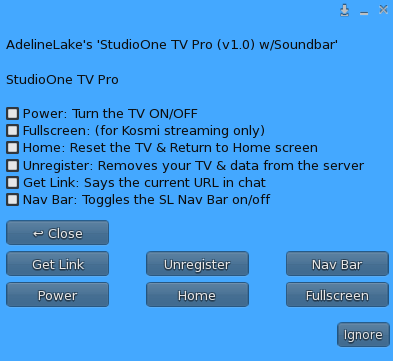
Main Touch Menu
- Power: Toggles the screen media ON or OFF (Black screen).
- Home: Resets the internal browser and forces the TV back to the StudioOne Home screen. This also works from inside SyncStudio or any website.
- Fullscreen: (Kosmi Only) Forces the video stream to fill the entire TV screen area.
- Nav Bar: Toggles the web browser navigation bar (home, back/forward buttons) at the top of the media face.
- Get Link: Posts the current website URL into local chat.
- Unregister: Completely disconnects the TV from the server. (Requires re-registration to use again).
📡 Lifetime Updates
Your StudioOne TV Pro is designed to stay current without the hassle of manual upgrades.
Pressing the Home button instantly loads the latest version of the TV interface.
If physical objects require updates, you will receive an automatic prompt to accept a new version for free.
Troubleshooting & FAQs
Why do I only get one scripted Soundbar?
The StudioOne Soundbar is No-Copy / Transfer to allow for deeding on parcels where deeding is required. To control multiple TVs with a single paired Soundbar, we recommend copying your TV rather than rezzing a new one from the box.
Copying a TV retains the TV code, pairing status, settings, saved links, and favorite stations across all units.
How to copy your TV:
- The Shift-Drag Method: Right-click the TV > Edit. Hold SHIFT and drag a directional arrow to create a synchronized clone.
- The Inventory Method: Right-click the TV > Take Copy. Always rez that specific copy from your inventory (it will end up in the Objects folder by default - feel free to rename it and place it back in your TV box folder) rather than the original boxed TV.
I can't hear any audio!
Ensure the Soundbar is deeded to the land group. Check that "Mute Music" is not checked in your viewer's sound settings, and that the parcel stream is toggled ON in the My Parcel Music menu.
The screen is blank/white.
Ensure Media-on-a-Prim is enabled in your viewer preferences. If the issue persists, clear your viewer's browser cache (Preferences > Privacy > Clear Browser Cache).
My friend sees a different video than I do.
Outside SyncStudio and Kosmi, the TV works like a standard web browser. Each person's viewer loads the page on its own, so if a site has an "Auto-play" delay or a localized ad, viewers fall out of sync.
The Fix: For YouTube, Twitch, Vimeo and SoundCloud, use SyncStudio. For screen sharing or other sites, use Kosmi. In SyncStudio, if your friend's screen says "Tap to join the stream", they just need to click it once.
SyncStudio Questions
Why can everyone control SyncStudio on my TV?
SyncStudio has no owner until your TV has a Settings Menu PIN other than 0000. Until then, everyone watching gets Full control, but nobody can make playlists or change Guest access. Set a Settings Menu PIN in the TV's Settings, then click the lock button in SyncStudio, enter the PIN and choose what guests can do.
Why does SyncStudio keep asking me for a PIN?
Your viewer remembers the owner key for each TV. You're only asked again if the Settings Menu PIN changes, you use a different viewer or computer, or your viewer's saved web data is cleared. Some viewers may clear it when you relog. If you own more than one TV, each one asks once.
It says "Too many wrong PINs" or "Too many tries".
After several wrong PINs, SyncStudio stops checking PINs at that TV for a while so nobody can guess it. Wrong tries by other people can cause this too. Wait up to 10 minutes, then try again with the right PIN.
Why did my video go to the owner for approval?
On Ask me first, every request goes to the owner. On Jukebox, live streams, videos over 15 minutes and videos whose length SyncStudio can't check (such as SoundCloud tracks and Twitch videos) still go to the owner first. Your video shows "Waiting for approval" until the owner approves or denies it.
Why is search off?
The owner has set the TV to Watch only, so guests can't search, paste links, browse channels or send requests. The Owner PIN bar is only for the owner. You don't need a PIN to watch.
Which links can I play?
YouTube videos (including Shorts and live streams), Vimeo videos, SoundCloud tracks, and Twitch channels (they play live) or Twitch videos. Vimeo live events and showcases, SoundCloud playlists (sets) and Twitch clips aren't supported. Only YouTube playlists can be imported into a playlist.
Can the owner see who asked for a video?
No. SyncStudio doesn't collect your avatar name. While a request waits, only the owner can see it (plus you, on the viewer you sent it from). Once it's in the queue, everyone can see the video but not who added it.
How do I get help or send feedback from SyncStudio?
Click ? at the top right of SyncStudio, then Support (help and bug reports) or Feedback (ideas). You can send one of each every 24 hours. They're also in the ? next to the clock on the TV's Home screen.