OneOS sBook Pro
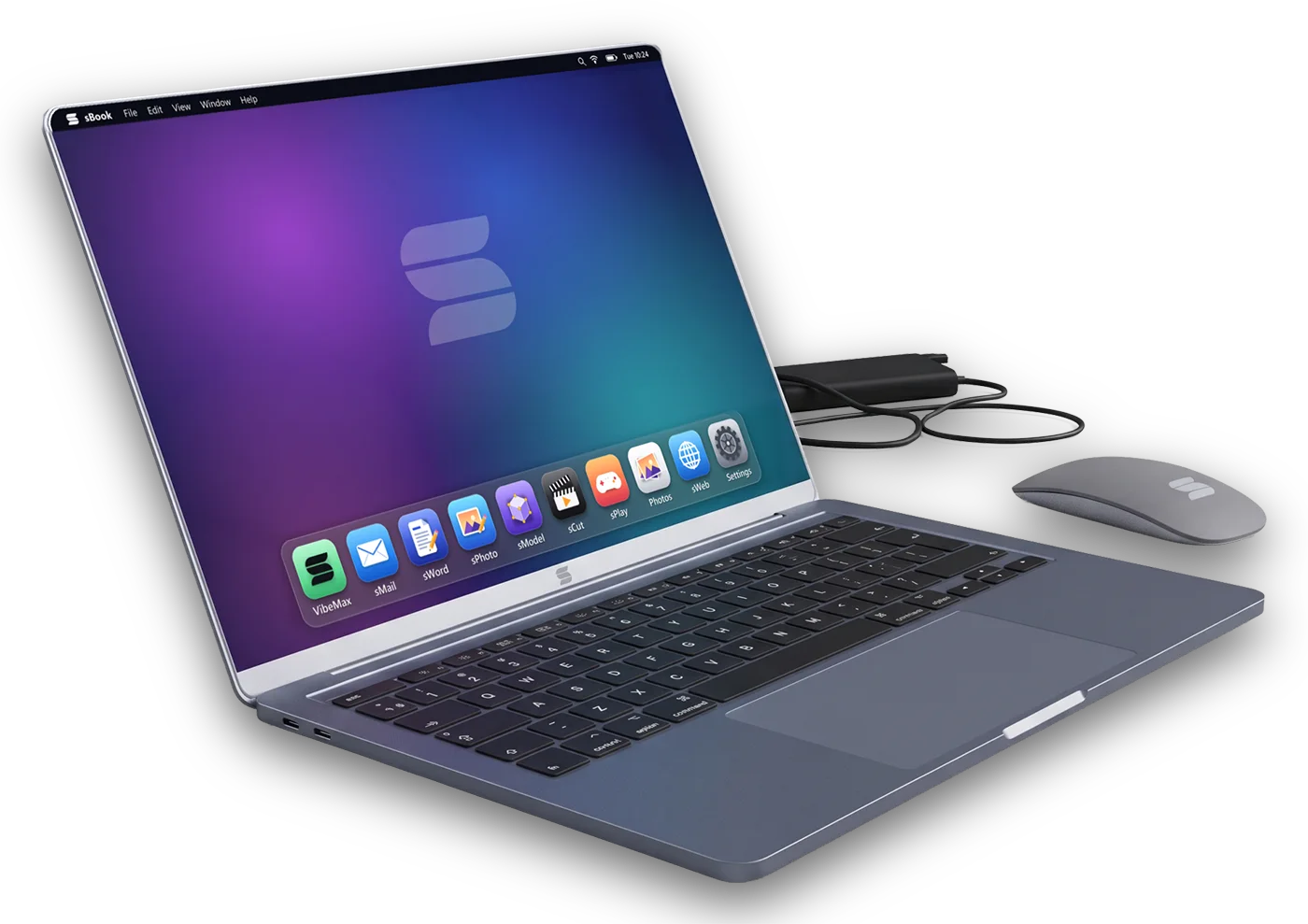
A working laptop for your desk or your hands: OneOS with 10 apps, real websites, messages from visitors, a backlit RGB keyboard and a touch bar that changes with each app. This guide covers the rezzed sBook Pro and the holdable Right and Left versions.
Quick Start Guide
1. Open the Lid
Touch the lid (anywhere but the screen), or use 💻 Open Lid in the menu. With the laptop on, it starts up with a sound and a hello screen, then shows your home screen. Tap the screen to skip the hello screen.
2. Open the Menu
Touch the laptop's base (the palm rest or the trackpad) to open the OneOS main menu.
3. Power On and Off
Press the ⏻ key at the right end of the keyboard's top row, or use ⏻ Power in the menu. Switching it back on shows the hello screen again.
Which sBook Do I Use?
Your package includes three sBooks: the rezzed laptop, and the holdable in a Right and a Left version. There's also a mouse and a charger with its cable to set on your desk beside it. They're decor, not linked to the laptop.
The Rezzed sBook Pro
Rez it on your desk or table. It has everything: the screen and its apps, websites, the keyboard and touch bar, and messages.
You can also let friends, your group or everyone use its screen (⚙️ Settings → 🔒 Access).
The Holdable sBook Pro
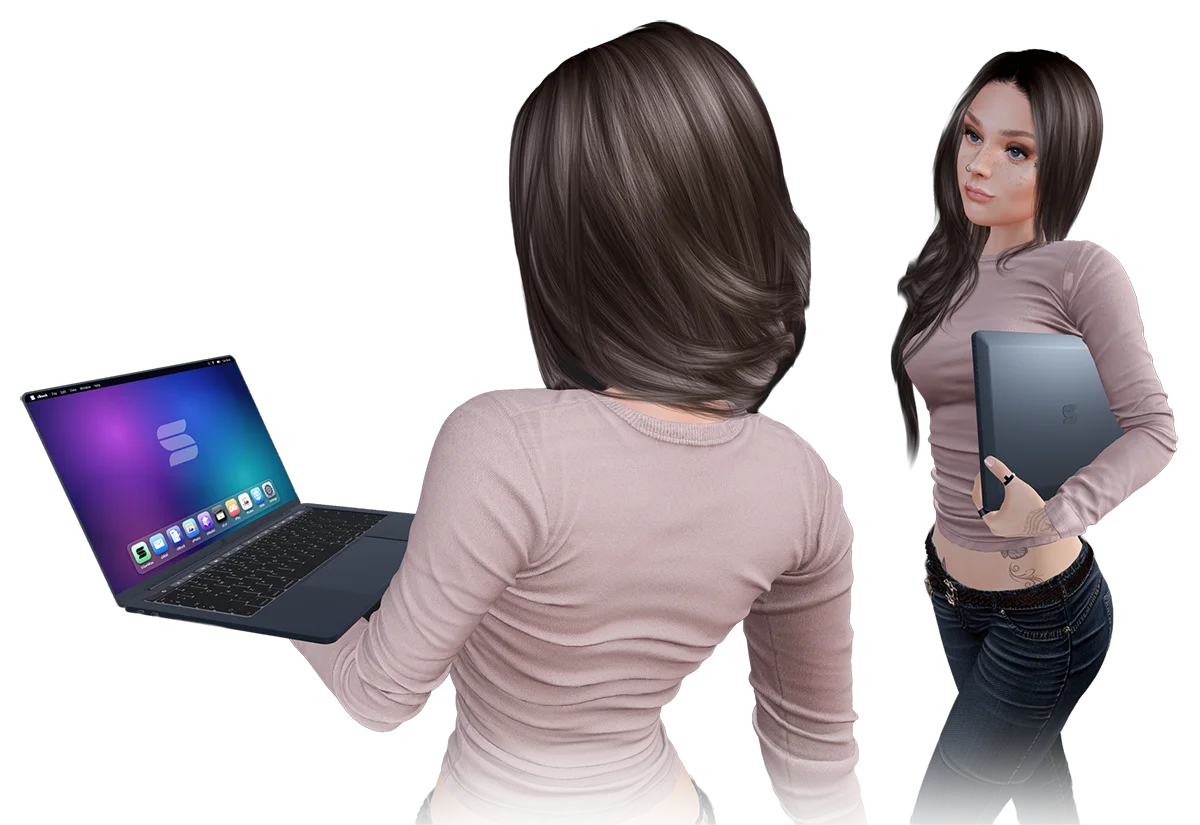
Wear it in your hand. It has two hold poses, and the lid follows them:
- Lid closed: carried at your side.
- Lid open: held in front of you, ready to use.
The holdable is yours alone. Anyone who touches it can leave you a message, and that's all.
Right and Left
The holdable comes in a Right and a Left version. Wear the one for the hand you want it in: its poses are made for that hand.
Home Screens & Apps
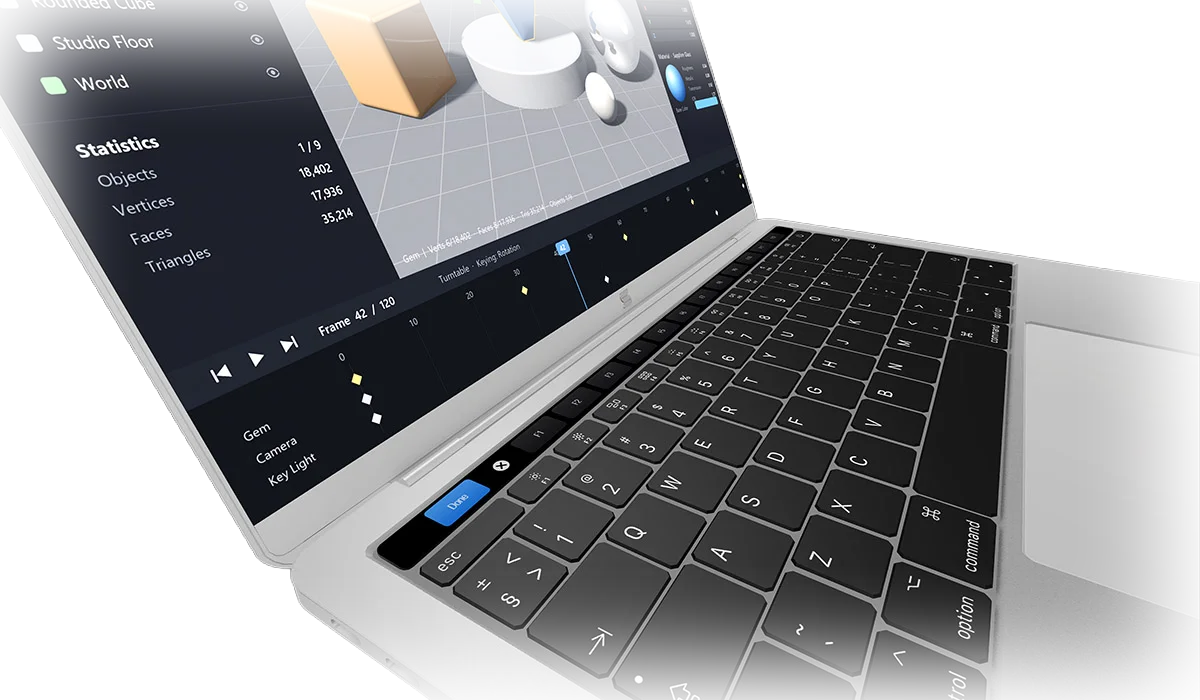
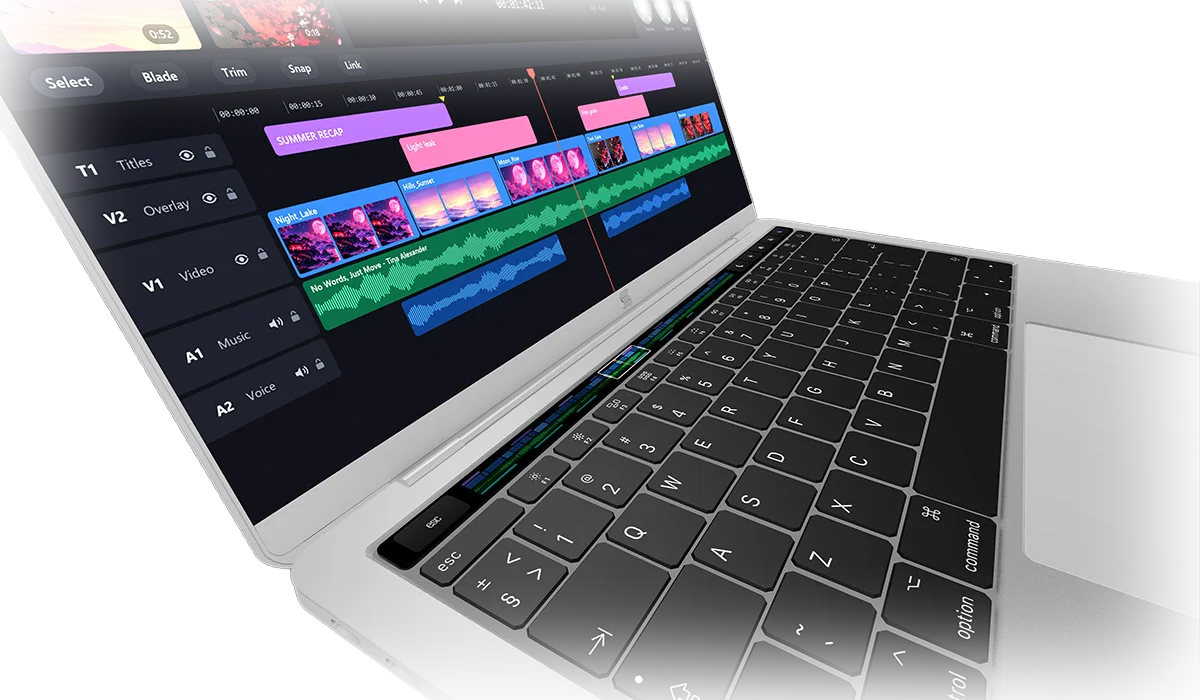
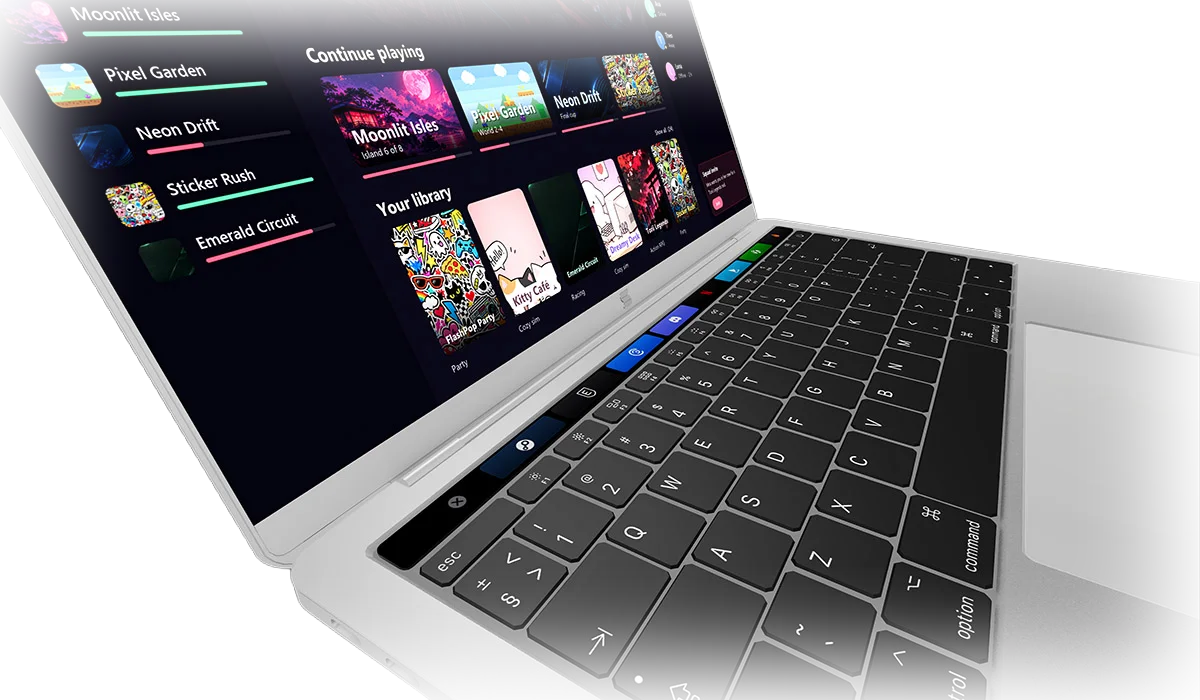
The home screens (Desktop, Graphite and Dawn) have a dock of 10 apps. Tap an app to open it, and tap the screen again to go back home (a website is the one exception: see Leaving a website). The touch bar above the keyboard changes to match the app on the screen.

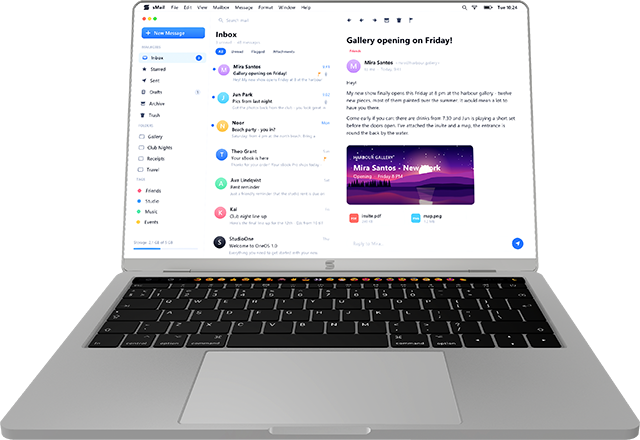
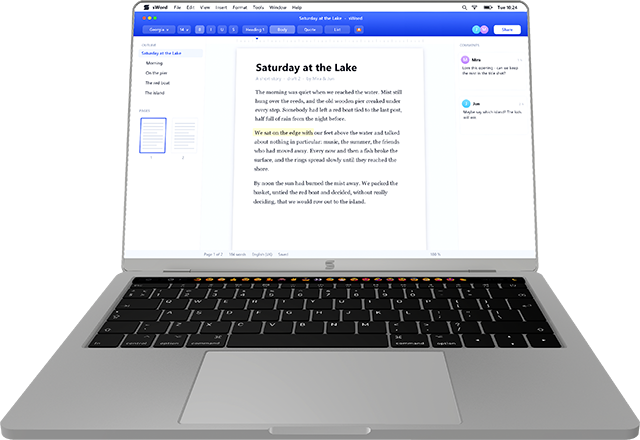
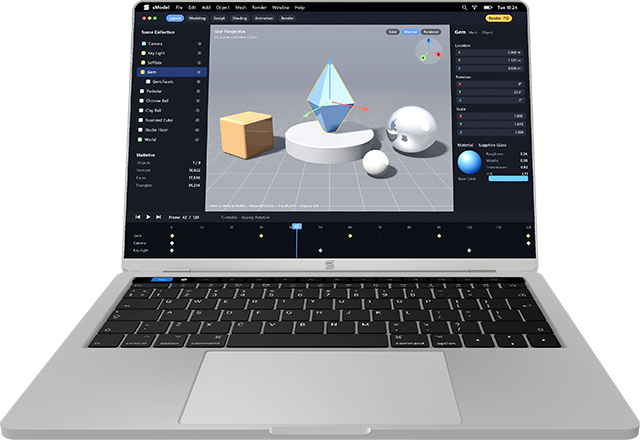
- VibeMax, sMail, sWord, sPhoto, sModel, sCut, sPlay – Each opens its own app screen, and the touch bar switches to match. sMail also opens your inbox.
- Photos – Shows your own picture. The first time, it asks for the UUID of a texture to show.
- sWeb – Opens your homepage. The first time, it asks for its web address.
- Settings – Gives you the sBook HUD (see The sBook HUD).
Tip: to get a texture's UUID for Photos, right-click the texture in your inventory and choose Copy Asset UUID.
The Apps




Settings & Sizing
Open ⚙️ Settings from the main menu.
- 🖼️ Wallpaper: Choose what the screen shows: the Desktop, Graphite or Dawn home screen, one of the app screens, or 🎨 Custom (any texture UUID). Picking one closes any website.
- ⌨️ Keyboard: Choose the touch bar and turn the keyboard backlight on or off. The backlight starts off. See Keyboard & Touch Bar.
- 🔖 Bookmarks: Your saved websites. See Websites & Bookmarks.
- 🔒 Access: Rezzed laptop only. Who else can use the screen's apps, the ⏻ key and the RGB bar: Only Me, Friends, Group or Everyone. They can open apps, go home, wake the screen, switch it on or off, and colour the keyboard on the RGB bar. Your inbox, homepage and picture always stay yours. ▣ Share Web also gives everyone a website's address bar and lets them click the page.
- 📨 Messages: Who can leave you messages, IM alerts, the message sound, and Unblock All. See Messages.
- 🏠 Homepage: Change the page sWeb opens.
- 📐 Resize: Make the laptop bigger or smaller (below).
📏 Resizing Your sBook
📐 Resize scales the whole laptop in steps of 1%, 5% or 10%. ↺ Restore puts it back to its default size.
Both sBooks go up to 200% of their default size, and down as small as Second Life allows. The menu shows how far it can go.
Websites & Bookmarks
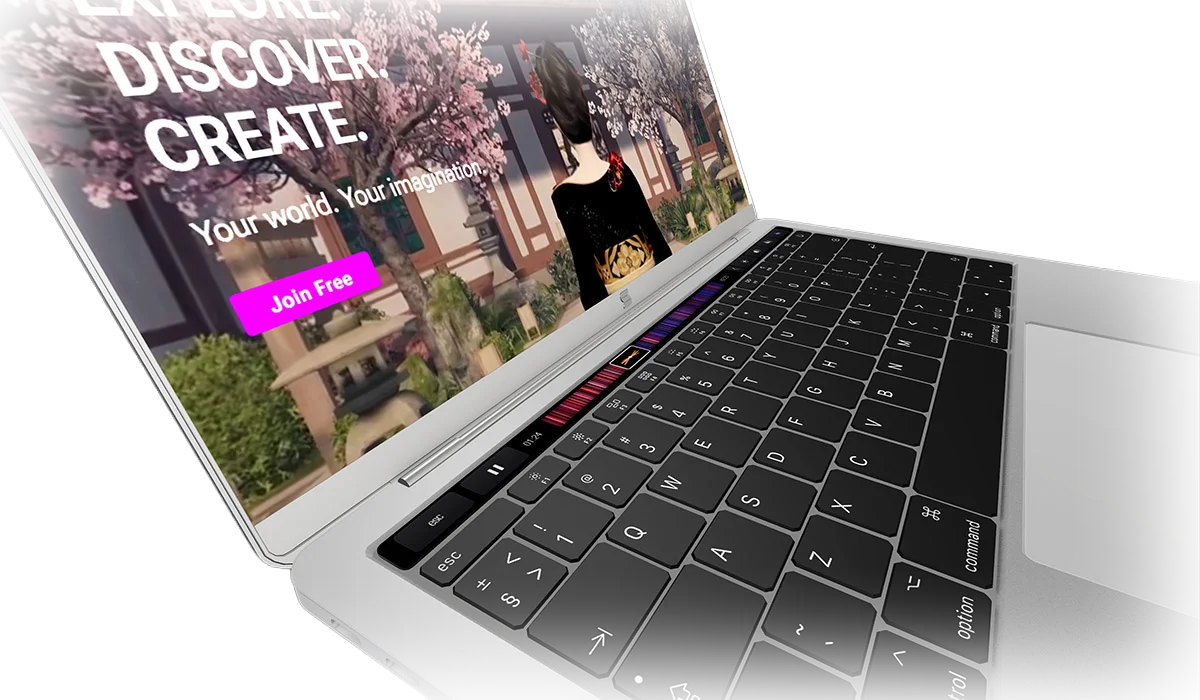
Your Homepage
- Tap sWeb on the dock, or open ⚙️ Settings → 🏠 Homepage.
- Paste the web address. It must start with
https://. - From then on sWeb opens it straight away, and it's always the first of your bookmarks, marked ⭐ Homepage.
🔖 Bookmarks
- ⭐ Homepage comes first once you've set one, with room for 8 more sites.
- ➕ Add asks for the web address (it must start with
https://), then a name for its button. Leave the name blank to use the site's own name. - Pick a site to show it on the screen. Pick it again (▣) to close it.
- 📝 Edit lets you rename or remove a site, or change ⭐ Homepage.
🌐 The Address Bar
A website on the screen has your viewer's address bar, so you can type in any address or go back and forward.
It's yours alone to start with. On the rezzed sBook, ⚙️ Settings → 🔒 Access → ▣ Share Web gives it to everyone, and lets them click the page too. On the worn holdable it's always yours alone.
Leaving a website: while a website is on the screen, tapping the screen clicks the web page instead. To close it, touch the laptop's base and click 🏠 Home at the top of the menu. You're back on your home screen.
Websites show using Second Life's shared media. If media is off in your viewer, the screen shows the loading screen instead, with the two settings to turn on: Media Enabled on the Sounds tab, and Media auto-play on the Media tab (Preferences → Sound & Media).

Keyboard & Touch Bar
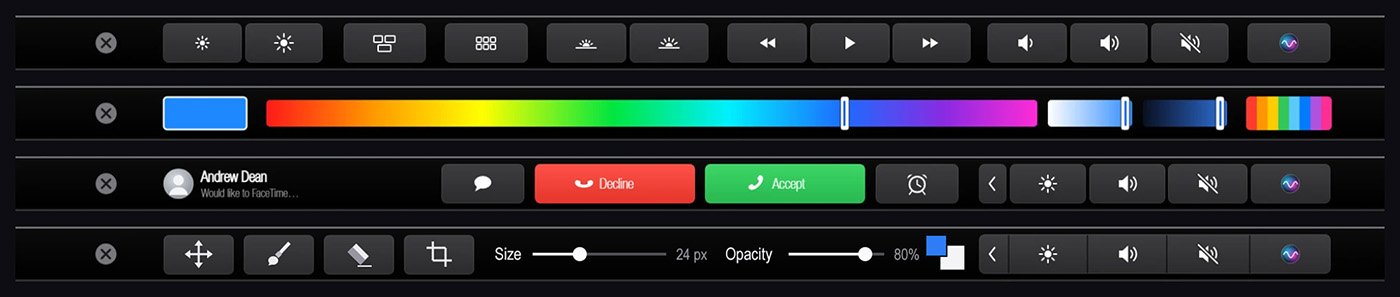
Controls, RGB, the Call bar and sPhoto's bar
The Touch Bar
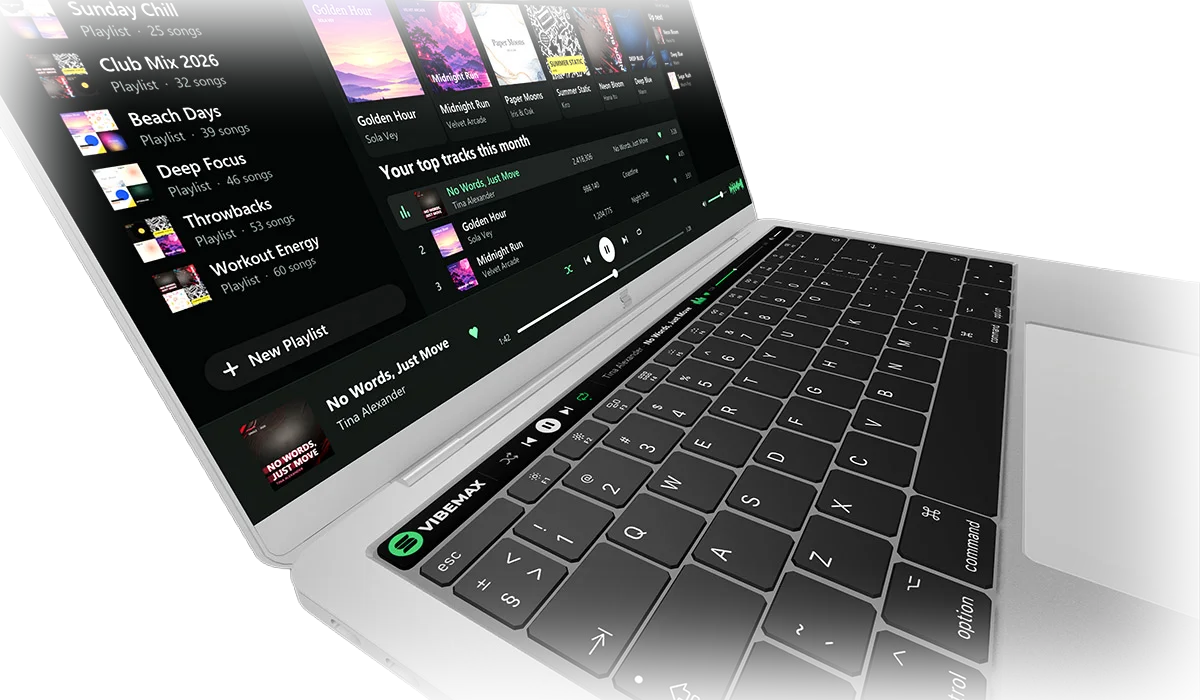
The touch bar follows the app on the screen, and sPhoto has a bar of its own. Pick a bar in ⌨️ Keyboard to choose your own:
Controls, F-Keys, VibeMax, Video, Editing, Emoji, Gaming, Social or RGB.
Tap ✕ or esc on a bar to go back to Controls.
When a message arrives, the Call bar comes up. It goes away once you've read your new messages, or when you tap Decline.
💡 The Backlight
Turn it on or off with ▣ Backlight in ⌨️ Keyboard. It starts off.
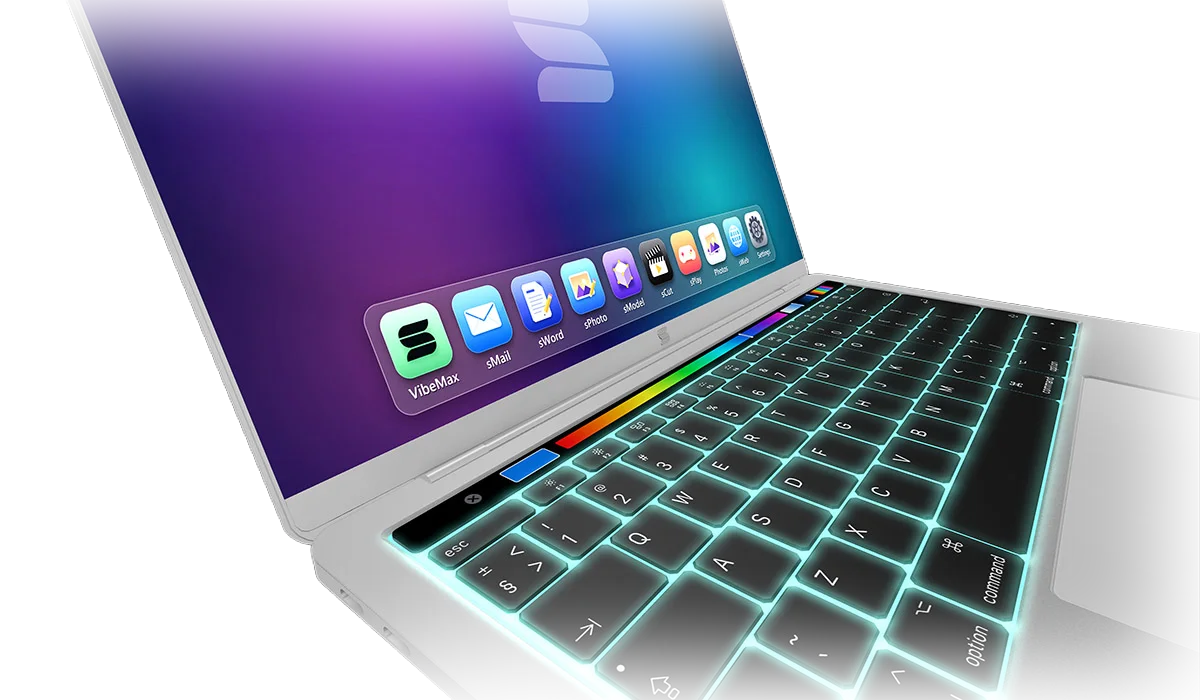
Tint it from the RGB touch bar: tap or drag the hue bar and the saturation and brightness sliders, or tap the rainbow button. Any of them turns the backlight on.
While the backlight is on, the home screens show the RGB bar, so it's always to hand (until you pick another bar).
Messages & Your Inbox
Anyone else who touches your laptop can leave you a message: they choose 📝 Message and type it (one message per person per minute). When one arrives you get an IM alert, a sound, a Call bar on the touch bar and a new-message look on the screen.
📥 Your Inbox
Open it from the main menu, the sMail app, or Accept / Message on the Call bar (Decline puts the Call bar away). It shows 3 messages per page, with ⭐ on the unread ones. Open a message to:
- ↩️ Reply – sends them an IM with your reply and a link to IM you.
- 🚫 Block – stops them leaving you messages.
- 🗑 Delete – removes that message.
🗑 Clear on the inbox list deletes every message. Your inbox keeps your latest 50 messages; when it's full, the oldest message you've already read makes room.
📨 The Messages Menu
⚙️ Settings → 📨 Messages
- 🔒 Access: Who can leave you messages: Everyone (to start), Group, Friends or Off.
- ▣ IM Alerts: An IM when a message arrives (on to start).
- ▣ Sound: A sound when a message arrives (on to start).
- 🚫 Unblock All: Lets everyone you've blocked leave messages again.
The Holdable sBook
🤲 Switching Poses
Wear it, then touch its base for the menu. 💻 Open Lid switches to holding it open in front of you, and 💻 Close Lid goes back to carrying it closed at your side. Touching the lid switches the pose too.
✋ Fitting It
Move it with Edit to fit your hands. Each pose remembers its own spot, so fit it once in each.
The sBook HUD
Tap Settings on the dock of either sBook (rezzed or holdable) to get the HUD, then accept the attach request. You need to be able to rez on the parcel.
HOME Page
- Tap an app to open it on the laptop.
- Tap the wallpaper to send the laptop home.
- ⏻ (top left) takes the HUD off.
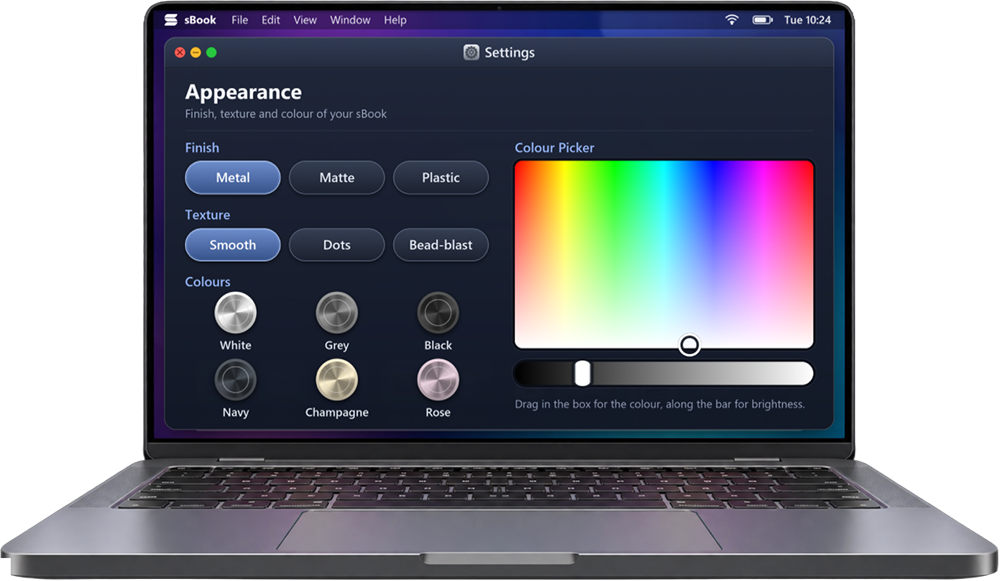
Settings Page (Fatpack edition)
- Finish: Metal, Matte or Plastic.
- Texture: Smooth, Dots or Bead-blast.
- Colour: six presets (White, Grey, Black, Navy, Champagne and Rose) and a colour picker.
- On a single colour, Settings shows "Fatpack only".
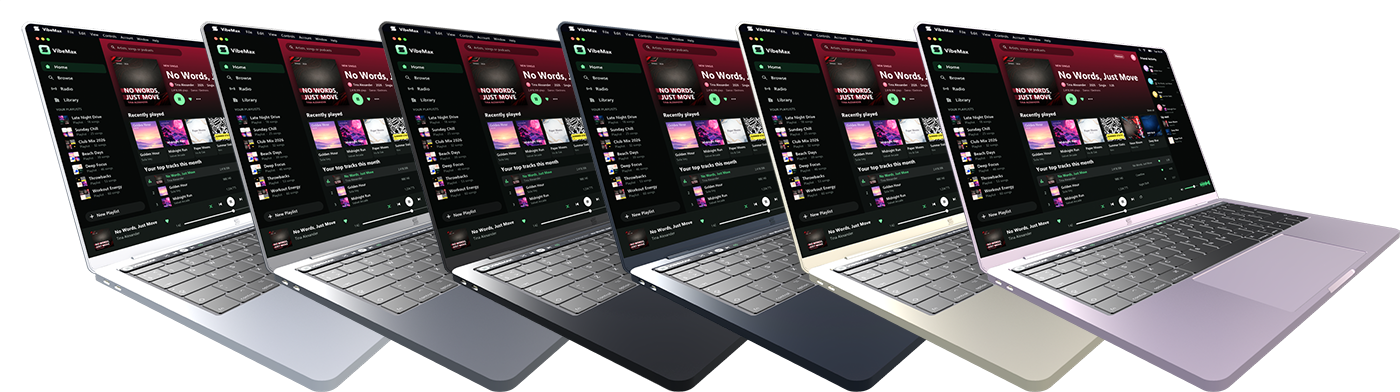
White · Grey · Black · Navy · Champagne · Rose
Cover Appliers
Dress the back of the lid with a designer cover. Each cover applier pack has 3 covers, and there are 8 collections.
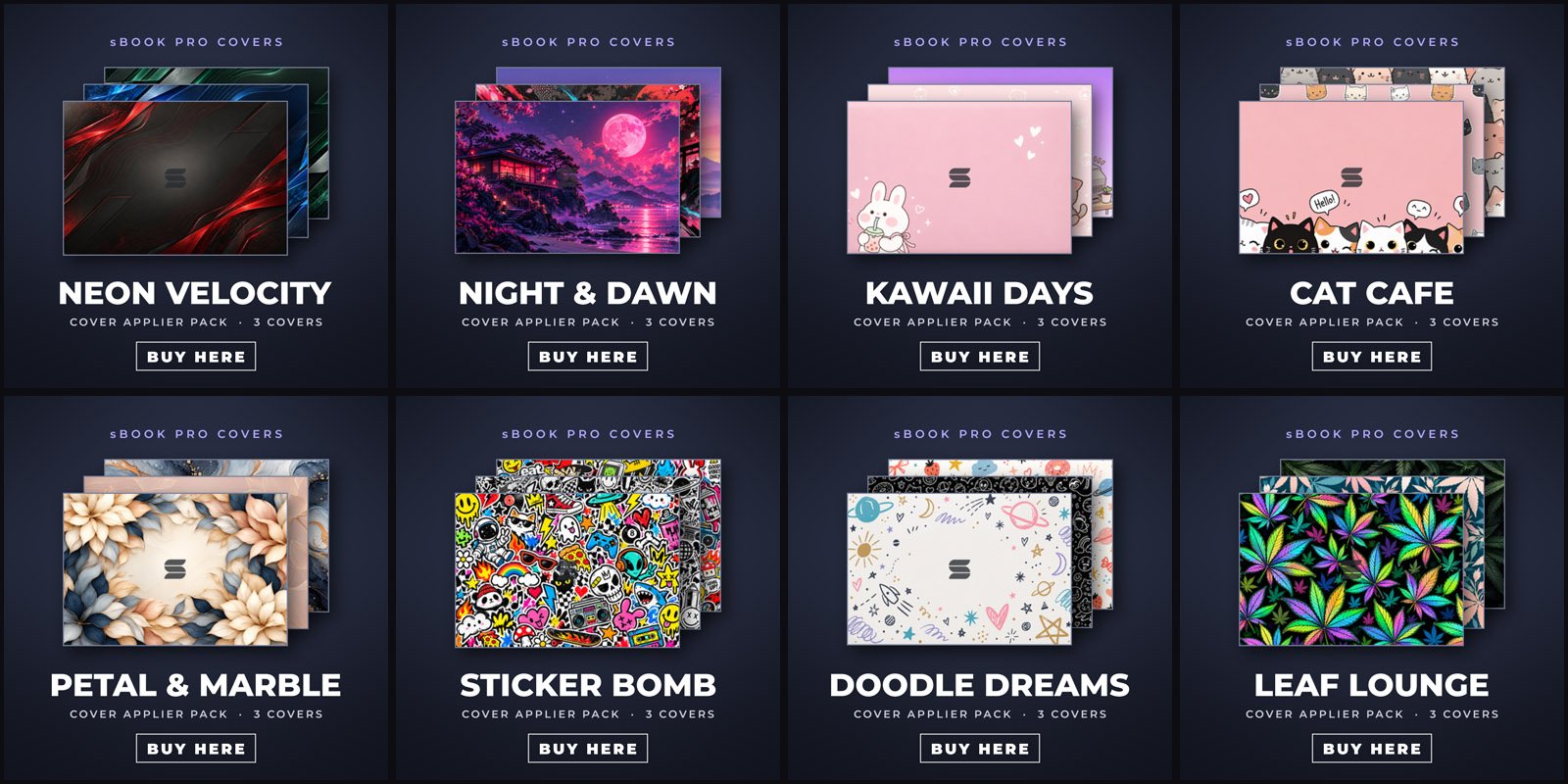
Putting a Cover On
- Wear the applier (or rez it nearby).
- Tap a cover: a frame lights up round it.
- Tap Apply to sBook. The cover goes on, and chat tells you it's on.
Good to Know
- Original cover puts the built cover back, in the laptop's colour.
- A cover keeps its own colours when you tint the laptop with the HUD.
- Covers work on the rezzed sBook and the holdable.
- The red or yellow light takes the applier off.
- Only one HUD at a time: wearing an applier takes the sBook HUD (or another applier) off.
Troubleshooting
🌐 A website doesn't show
- If the loading screen stays up, media is off in your viewer. Open Preferences → Sound & Media, tick Enabled next to Media on the Sounds tab, then set Media auto-play to Enabled on the Media tab.
- Addresses must start with
https://.
🖥️ The screen is dark
- The laptop may be powered off: tap the screen, press the ⏻ key, or use ⏻ Power in the menu.
- The screen only shows with the lid open.
👥 Friends can't use the screen
On the rezzed laptop, open ⚙️ Settings → 🔒 Access and choose who else may use it. For websites, tick ▣ Share Web to give everyone the address bar. The holdable is always yours alone; anyone else can only leave a message.
🎨 The HUD doesn't appear
The laptop rezzes the HUD before you wear it, so you need to be able to rez on the parcel. Accept the attach request when it comes up.
⚠️ "No sBook found"
The HUD or applier asked and none of your laptops answered. Your sBook must be in the same region as you, rezzed or worn.